

cTrader Risk Manager - User Guide
Optimize your trading with the cTrader Risk Manager cBot, automatically calculating lot sizes based on your risk parameters for precise management.

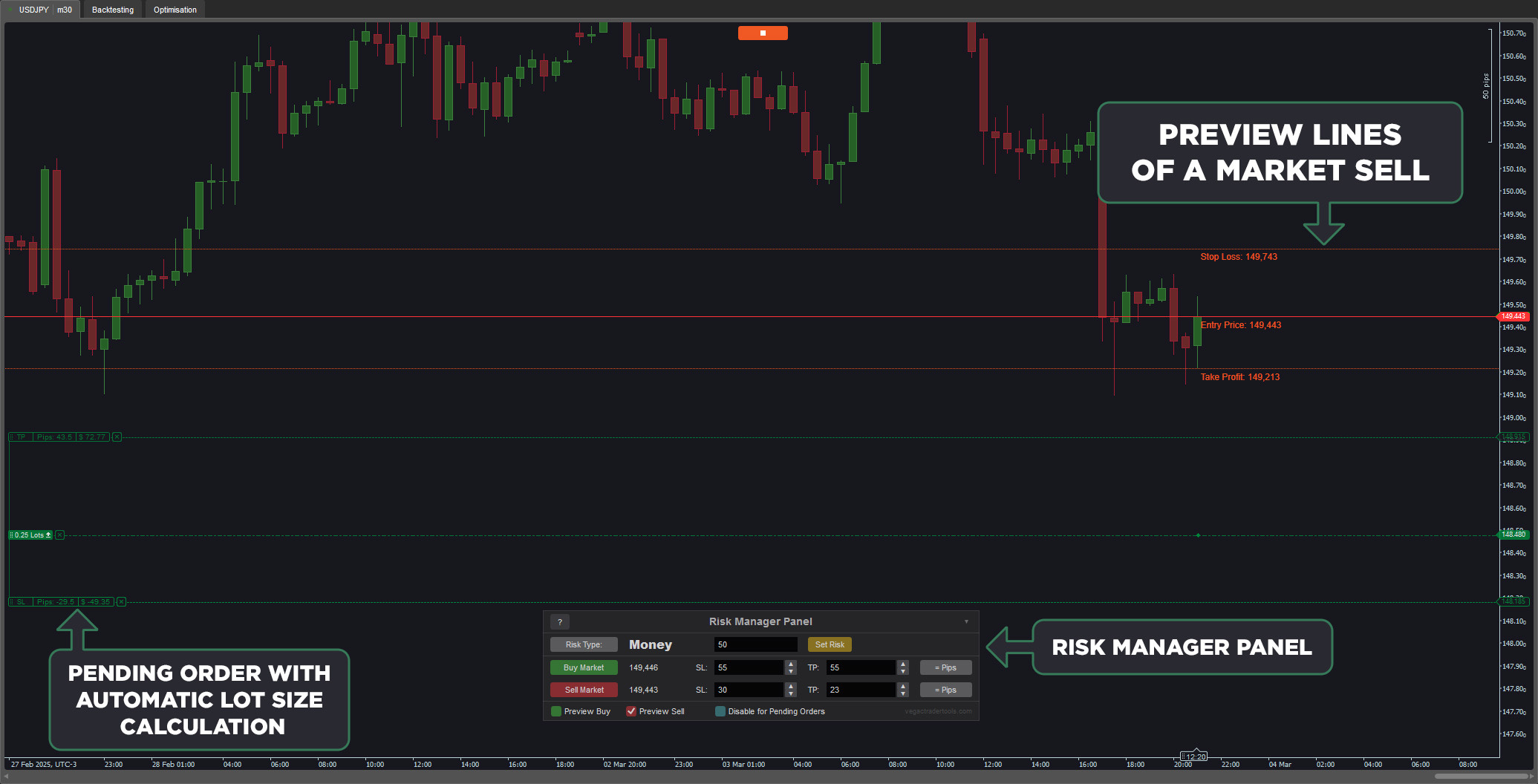
Trading with the correct risk amount is essential for success. The cTrader Risk Manager cBot automatically calculates the lot size of pending and market orders based on your chosen risk amount (money or balance percentage). It offers seamless integration with the chart, allowing you to edit pending orders directly, while market orders can be adjusted through the Risk Manager Panel with a preview before execution. Designed for intuitive use, no additional training is required.
Features:
Automated Lot Size Calculation: Adjusts lot sizes for both pending and market orders based on risk settings.
Real-Time Order Editing: Modify pending orders on the chart with automatic lot size updates.
Market Order Preview: Preview market orders on the chart before execution.
Risk Type Customization: Choose between money or balance percentage for risk management.
Seamless Integration: Update settings dynamically without restarting the cBot.
Customizable Risk Settings: Set default stop loss, take profit, and risk amounts.
Panel Positioning: Adjust panel placement on the chart.
Disable Risk Management for Pending Orders: Apply risk settings only to market orders, if desired.
New User Guide Button: Access the user guide directly through a small button on the Risk Manager Panel.
Version 1.4 Updates:
With cTrader’s ability to adjust timeframes and parameters while running, the cBot now remembers Risk Manager panel settings when:
Changing timeframes
Pausing and restarting the cBot
Modifying cBot parameters
With these features, the cTrader Risk Manager cBot ensures precise and efficient risk management for traders of all levels.
Version 1.6:
To prevent positions being placed without stop loss while using the market buy and market sell buttons of the Risk Manager Panel and exceedingly small stop loss prices, now the cBot will add the spread to the stop loss of those orders. Note that because of high volatility, it is impossible to make sure all positions will have a stop loss.
Added an alert, which will pop-up on the screen if a position opened with the Risk Manager panel has no stop loss. You can disable that in the parameters of the cBot if you don't want that.
Version 1.7:
Switching to price mode will make the lines on the chart interactive. You will be able to move the lines directly with the mouse.
The price targets in the Risk Manager panel will update automatically and reposition to valid price levels when the market moves past them.
Important Note:
The Risk Manager Panel may not work correctly on cTrader for Mac due to a platform bug. However, the cBot remains fully functional for pending orders via parameter settings.
How to Use:
Run the cBot.
Select the risk type using the Risk Type button.
Enter the risk amount and click Set Risk.
Place pending orders on the chart or use the Buy/Sell Market buttons.
Adjust stop-loss positions—lot size updates automatically.
Toggle between pips and price for market orders using the = Pips button.
Enable Preview Buy/Sell to visualize stop-loss, take-profit, and entry positions.
Customize panel position using the button in the top right corner.
Parameters
Risk
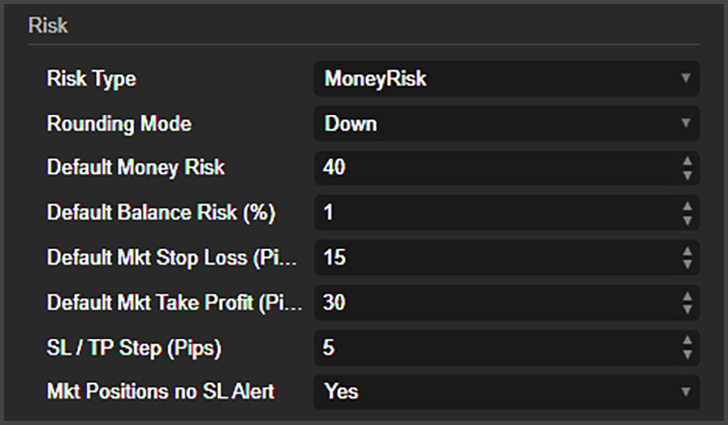
Risk Type: This is where you can choose the risk type the cBot will use to start (You can change this later in the Risk Manager Panel).
Rounding Mode: Here, you choose how the risk calculation will be rounded. You can choose To Nearest, Down or Up.
Default Money Risk: Use this parameter to change the starting money risk amount. You can change this later in the Risk Manager Panel.
Default Balance Risk (%): This is the same as the previous (3) parameter, but instead of an amount of money, this uses a percentage of your account.
Default Mkt Stop Loss and Take Profit (Pips): This is the starting amount in pips, for the size of the stop loss and take profit of market orders.
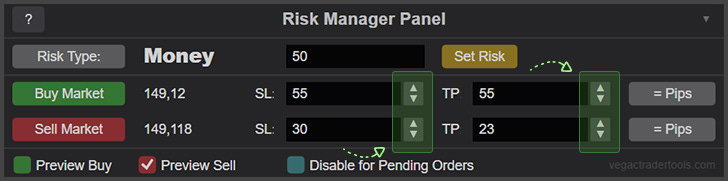
SL / TP Step (Pips): This is how much pips the market order preview lines will move on the chart when clicking on increase and decrease value buttons on the Risk Manager Panel.
Mkt Positions no SL Alert: This will alert you if a position placed by the Risk Manager panel have no stop loss. I recommend keeping this enabled.
Risk Manager Panel (Parameters)
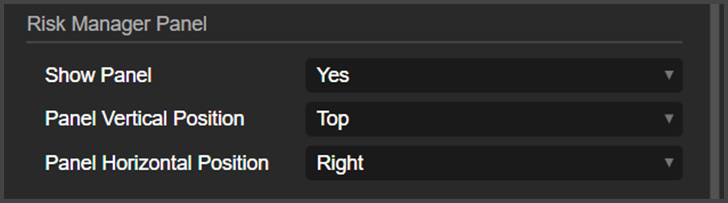
These are the parameters used to enable and move the Risk Manager Panel on the chart. Note that if you are using cTrader for Mac, this panel will not work.
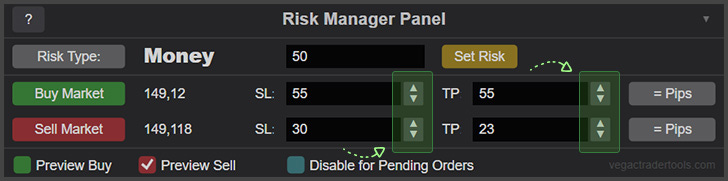
Risk Manager Panel
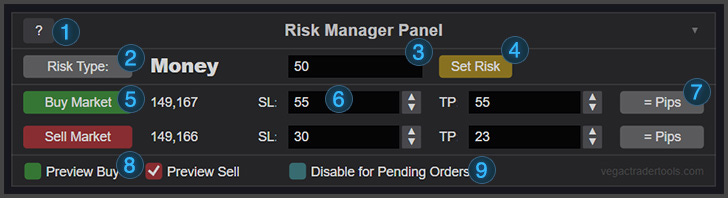
The “?” Button: This is the help button. When clicked, this user guide opens.
Risk Type: Click on this button to change the risk type from Money to Account Balance and vice versa.
Risk Box: This is where you set your risk amount.
Set Risk Button: After typing the risk in the risk box, click here to apply it to the chart.
Buy and Sell Market Buttons: Click on these buttons to place a market order using the stop loss and take profit chose on the Risk Manager Panel.
Stop Loss and Take profit Boxes: Type here your stop loss and take profit. This can be in pips or price.
Pips / Price Button: Here, you can change between pips and price for the stop loss and take profit boxes. Changing to price will make the preview buy and preview sell lines interactive; you will be able to move the stop-loss and take-profit lines with the mouse directly from the chart.
Preview Buy and Sell: Here, you can enable the preview lines on the chart for the market orders.
Disable for Pending Orders: If you enable this box, the lots for pending orders will not be calculated.
Hi,
I like this product so much that I am using it to enter all my positions. So congrats in creating this cBot.
I do have a feature request.
However, let me explain my current work flow.
I use this cBot to enter a market order trade when I click on the Sell Market / Buy Market on this cBot.
Next, I would go to the cTrader's Position and click on the Advance protection button (The one with the shield logo) and do these steps every time I open a trade.
Step 1 : I would set the SL to break even after 3 pips.
Step 2: I would set the partial profit #1 to 5 pips and 10% (e.g when 1 lots move 5 pips, I want to take 10% profit i.e 0.1 lots)
Step 3: I would also set the stop loss on reverse order with 2 ticks.
I run on 1m chart and I do have 4 - 5 open trades pretty fast. So imagine I have to repeat the above step 1 - 3 every so often.
Are you able to include this step 1 - 3 setting into this cBot?
If not, are you able to create a new cBot to automate the above?
Let me know.
Thanks.