

cTrader Candlestick Patterns Pro - User Guide
Simultaneous Multi-Timeframe Detection of 34 Candlestick Patterns in cTrader

The cTrader Candlestick Patterns Pro indicator identifies 34 candlestick patterns across multiple timeframes, displaying them in a clean panel on your chart. It differentiates between inside and outside bars and offers features to manage positions and cBots based on alerts.
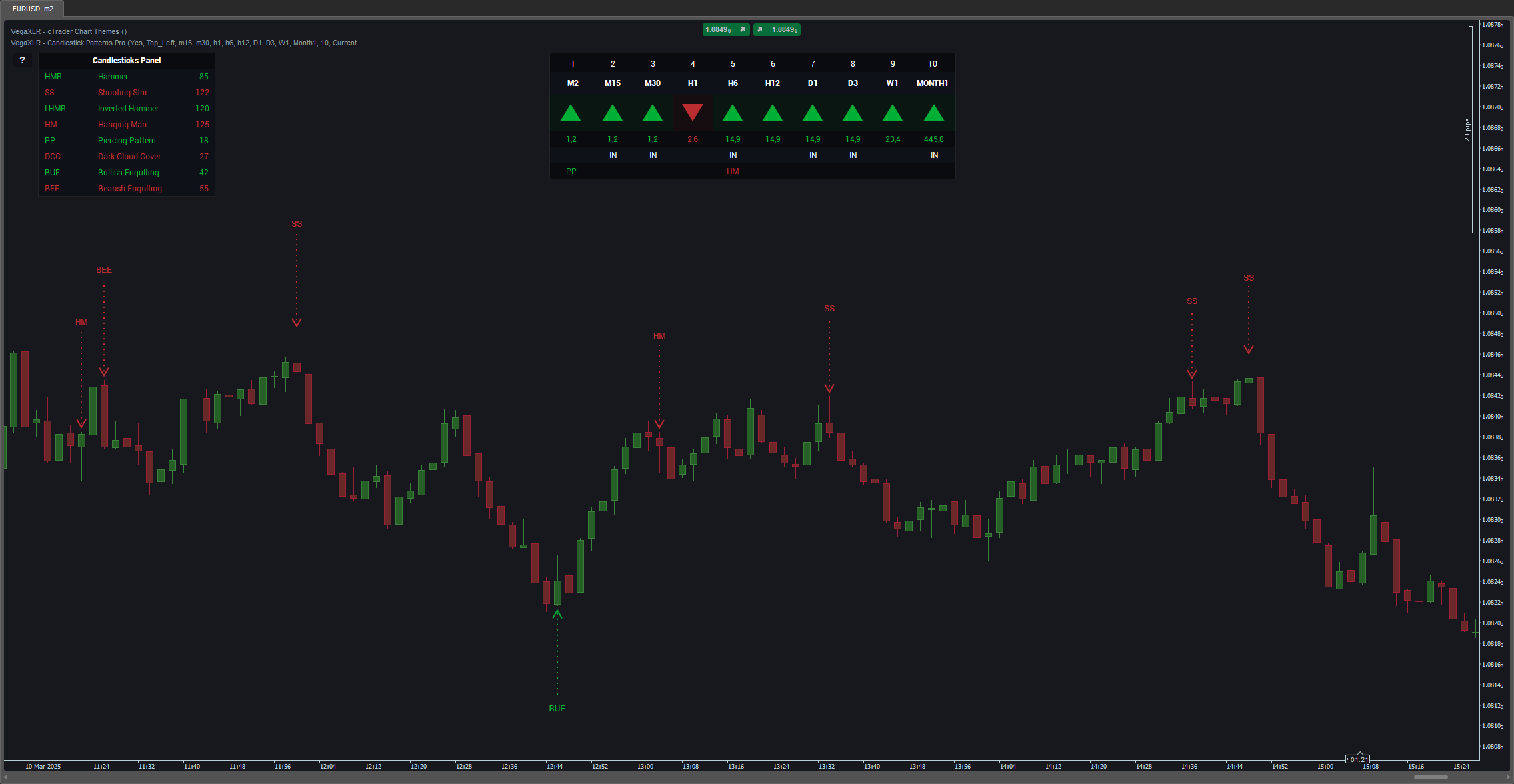
Patterns detected in the main timeframe are displayed directly on the chart with small arrows pointing to them, while patterns found in other timeframes are displayed in the Timeframes Panel. This panel also shows the market direction across all selected timeframes.
Key Features:
Pattern Detection: Recognizes 34 candlestick patterns, including bullish and bearish types.
Multi-Timeframe Support: Monitors up to 10 timeframes simultaneously.
Alert System: Delivers sound, pop-up, Telegram, and email alerts for various patterns and events.
Position Management: Automatically closes positions and starts or stops cBots when specific alerts occur.
Customization: Allows customization of panel colors, sizes, and positions.
User-Friendly Settings: Configure tolerance levels, trend consideration, and pattern abbreviations.
Update (Version 1.1):
Enabled direction change alerts for both directions simultaneously.
Fixed a minor issue with cTrader pop-ups.
Update (Version 1.2):
This user guide is now accessible through a small button on the chart.
Improved the Telegram alert system.
Added integration with Imgur, for better chartshot alerts.
Detectable Patterns:
Four-Price Doji
Standard Doji
Long-Legged Doji
Dragonfly Doji
Gravestone Doji
Hammer
Shooting Star
Inverted Hammer
Hanging Man
Piercing Pattern
Dark Cloud Cover
Bullish Engulfing
Bearish Engulfing
Morning Star
Evening Star
Three White Soldiers
Three Black Crows
White Marubozu
Black Marubozu
Three inside Up
Three inside Down
Three outside Up
Three outside Down
Bullish Harami
Bearish Harami
Tweezer Top
Tweezer Bottom
Spinning Top
Rising Three Methods
Falling Three Methods
Rising Window
Falling Window
Bullish on Neck
Bearish on Neck
Recommendations:
Avoid enabling all patterns simultaneously to prevent chart clutter.
Use the last closed candle setting for inside bars and the current candle setting for outside bars.
For a visual overview, watch the following video:
Parameters
Pause and Help
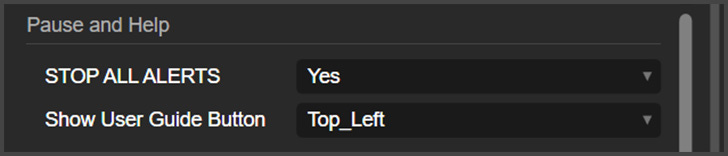
Pause All Alerts: Here, you can pause all alerts from this indicator.
Show User Guide Button: This will place a small button on the chart, that will open this user guide when clicked.
Timeframes
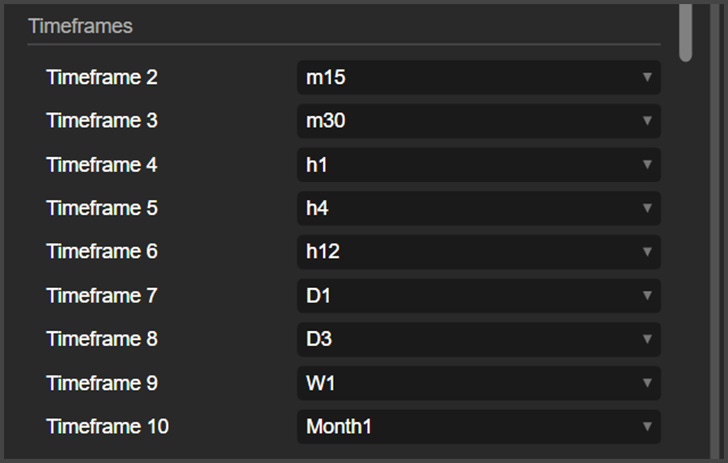
These are all the timeframes you want the indicator to manage. Timeframe 1 is the timeframe of the chart.
Timeframes Panel
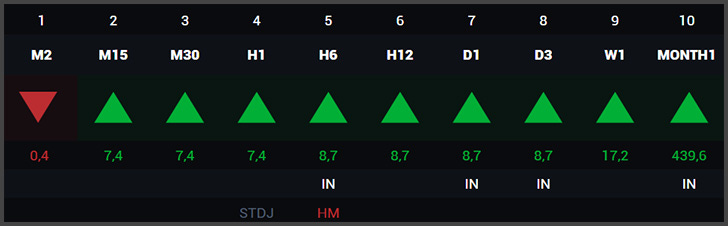
This is the Timeframes panel.
First Line: Here, you can see the number of the timeframes (for quick referencing when adjusting the parameters of the indicator).
Second Line: These are the timeframes you chose to work with.
Third Line (the triangles): These triangles represent the direction the price is going on those timeframes.
Fourth Line: Those numbers are the size of the last bar on those timeframes.
Fifth Line: This line will inform you about Inside and Outside bars on those timeframes.
Sixth Line: This is where the indicator will show you where the candlestick patterns are happening. As you can see on the image, the indicator detected a hammer on the H6 and a standard Doji on H1. These names are abbreviated for improved visibility, but this indicator includes another panel that adds a pattern list to the chart that can be used to check the full names. So don’t worry about remembering these abbreviations.
Timeframes Panel parameters
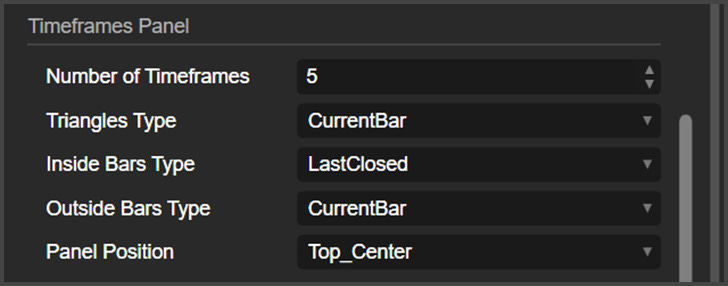
Number of Timeframes: Here, you can choose how many timeframes will be displayed on the Timeframes panel.
Triangles Type: Here you choose how the price direction is checked. You can choose to use the current bar, or the last closed bar.
Inside Bars Type: Same thing as the previous parameter, but this one is used to detect the inside bars. I recommend setting this one to LastClosed.
Outside Bars Type: Here, you choose which bar will be used to detect the outside bars. I recommend setting this one to CurrentBar.
Panel Position: Here, you can choose where the Timeframes Panel will be positioned on your chart.
Candlestick Parameters
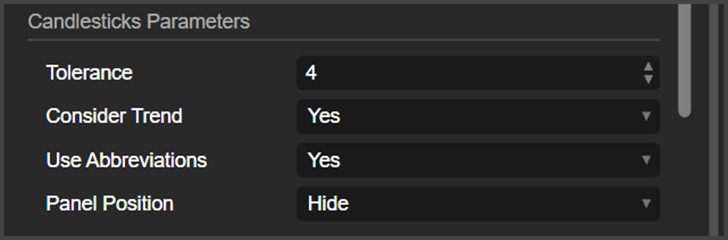
Tolerance: This is where you change how strict the candlestick patterns detection will be. It ranges from 1 to 5, where 1 is the strictest. Selecting a higher tolerance level will result in more patterns detected, but the proportions of these patterns can be less accurate.
Consider Trend: Here, you can choose if you want the indicator to detect the trend of the market, and use that to detect the candlestick patterns, eliminating irrelevant patterns.
Use Abbreviations: Here, you can choose if you want the patterns shown on the chart (not on the Timeframes panel) will have abbreviated names or not.
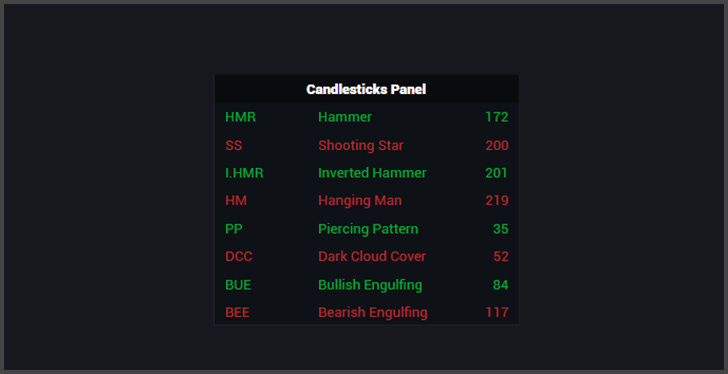
Panel Position: Here you can enable another panel that will be placed on your chart with all the enabled patterns, their abbreviation and full names, and the quantity of patters that have been detected on the chart.
Panels Customization
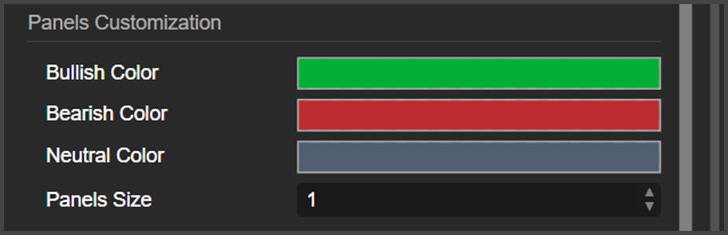
Here, you can customize the colors and the size of the panels of this indicator.
Choose Your Patterns
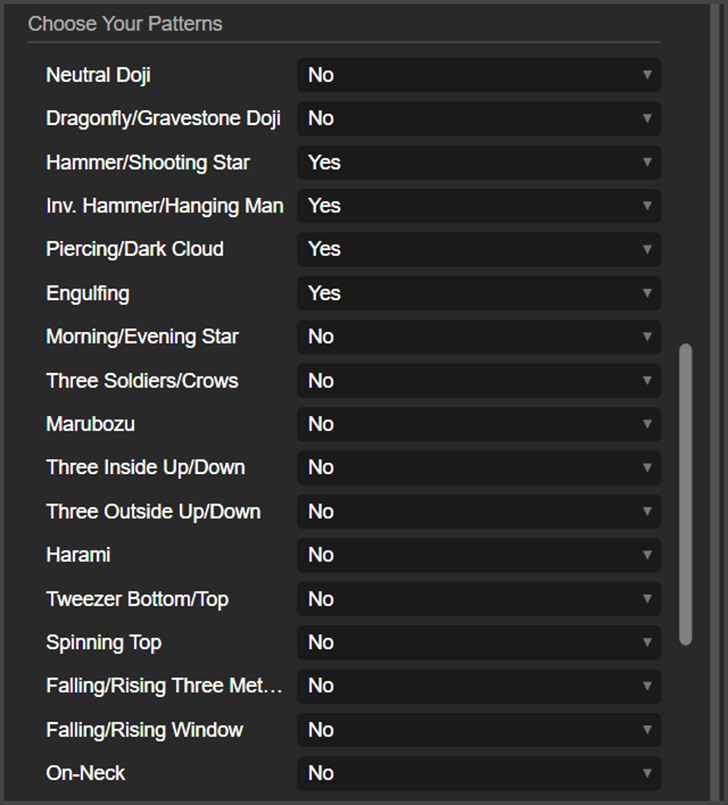
Here is where you choose all the candlestick patterns you want this indicator to detect.
Basic Alert Settings
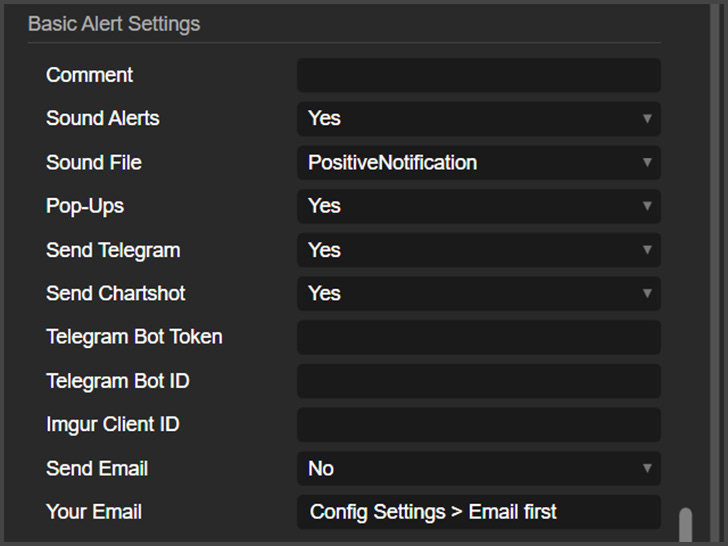
Comment: Type here a comment that will show up on the alert messages.
Sound Alerts: Here, you can enable sound alerts for this indicator.
Sound File: This is the sound used for sound alerts.
Pop-ups: Here, you can enable cTrader pop-up alerts.
Send Telegram: Here, you can enable or disable Telegram alerts.
Send Chartshot: A chartshot is a screenshot of the chart, and here is where you can enable Telegram messages with screenshots.
Telegram Bot Token and Bot ID: Place your Telegram credentials here.
Imgur Client ID: This indicator uses Imgur to send Telegram chartshots. Place here your Imgur Client ID.
Send Email: Here, you can enable email alerts.
Your Email: This is the email address you want to send alerts to.
Direction Change Alerts
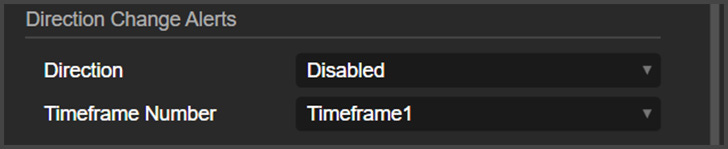
Direction: Here, you can enable and choose which direction you want alerts for. You can choose: up, down, or both. This will alert you when the price direction of a selected timeframe changes.
Timeframe Number: This is the number of the timeframe you want the alerts for. Look at the first line of the Timeframes panel to check the number of the timeframe you want the alerts for.
Inside and Outside Bars Alerts
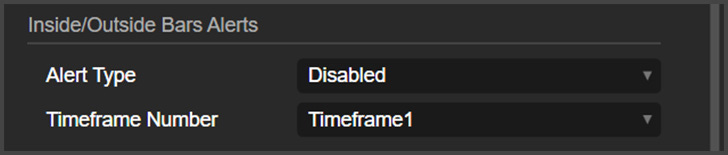
Alert Type: Here, you can enable and choose which type of alert you want for inside and outside bars. You can choose, inside, outside, or both.
Timeframe Number: This is the number of the timeframe you want the alerts for. Look at the first line of the Timeframes panel to check the number of the timeframe you want the alerts for.
Candlestick Alerts
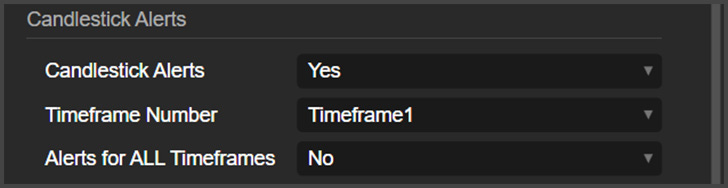
Candlestick Alerts: Here, you can enable or disable candlestick patterns alerts.
Timeframe Number: This is the number of the timeframe you want the alerts for. Look at the first line of the Timeframes panel to check the number of the timeframe you want the alerts for.
Alerts for All Timeframes: Here, you can choose if you want alerts for all timeframes present on the Timeframes panel, or just for the timeframe you selected on the previous parameter.
Close Positions on Alerts
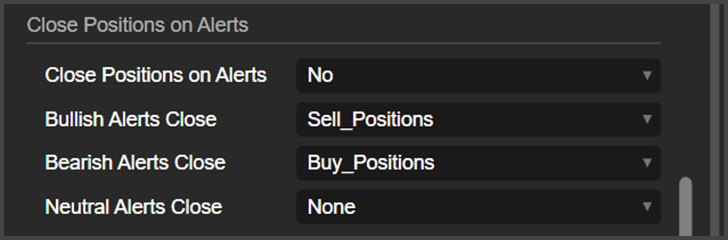
Close Positions on Alerts: This indicator can close positions when an alert is triggered, and here is where you can enable that feature.
Bullish Alerts Close: This dictates which type of positions bullish alerts will close. You can select buy, sell, all, or none.
Bearish Alerts Close: This is the same as the previous parameter, but for bearish alerts.
Neutral Alerts Close: Same as previous parameters, but for neutral alerts.
Inside and Outside bars alerts are considered neutral. Neutral Dojis and Spinning tops are also neutral. The rest of the alerts will have a defined direction (bullish or bearish).
Start and Stop cBots on Alerts
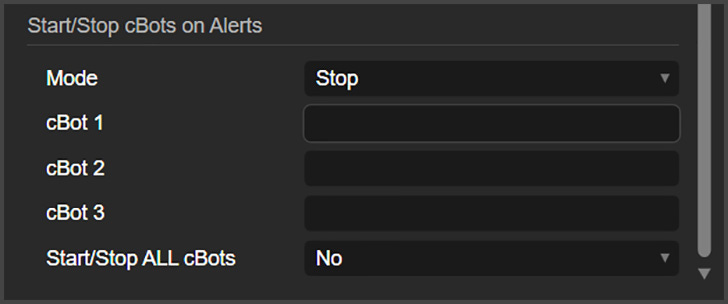
This indicator can start or stop cBots present on the same chart.
Mode: choose if you want this indicator to Start or Stop cBots on the chart.
cBot 1, 2 and 3: Here you write the name of the cBot you want to manage. This name must be written the exact way you see on the Algo tab.
Start/Stop All cBots: If you don’t want to write the name of the cBots, you can enable this option. This will manage all the cBots present on the chart.