

cTrader RSI and StochRSI Alerts - User Guide
Multi-Timeframe RSI & StochRSI Alerts, Fully Customizable.

VegaXLR - RSI and StochRSI Alerts is a cTrader indicator providing alerts for RSI and StochRSI events, keeping traders informed of market shifts. It notifies users about overbought/oversold levels, centerline crossovers, and K/D line crossovers, all with customizable settings.
Key Features:
Multi-Timeframe Analysis: Uniquely view RSI and StochRSI values from any timeframe directly on your current chart. For example, analyze the 1-hour RSI while viewing a 15-minute chart—without changing your chart's timeframe!
RSI & StochRSI Alerts: Receive notifications for:
Overbought & oversold conditions
Center line crossovers (50%)
K and D line crossovers (StochRSI)
Customizable Settings: Adjust RSI source, periods, K/D values, and alert thresholds for precise control.
Versatile Alerts: Choose from:
cTrader popups
Sound alerts
Telegram alerts (with optional chart screenshots)
Email notifications
Integrated RSI & StochRSI Lines: No need for extra indicators—they're built right in!
Instant Access Guide: A convenient in-chart button opens the user manual.


Parameters
Pause & Help
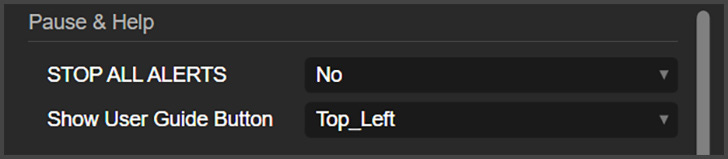
Stop All Alerts: Here, you can disable all alerts from this indicator at once.
Show User Guide Button: This places a small button on the chart, that when clicked, it opens this user guide.
Indicator Mode
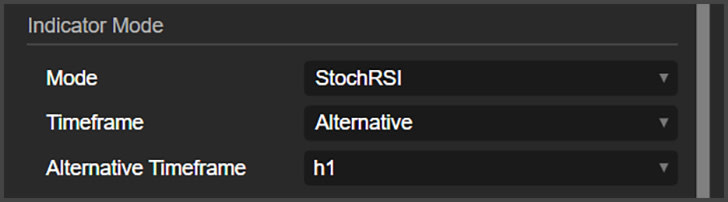
Mode: Here, you can choose if you want the indicator to work as an RSI or StochRSI indicator.
Timeframe: This option lets you choose if you want to work with the timeframe of the chart, or if you want to run the indicator with another timeframe.
Alternative Timeframe: If you choose to run the indicator with an alternative timeframe in the previous parameter, here is where you choose which timeframe the indicator will use. It is important to note that, when working with an alternative timeframe, you must choose a timeframe that is bigger than the timeframe of the chart.
Inputs
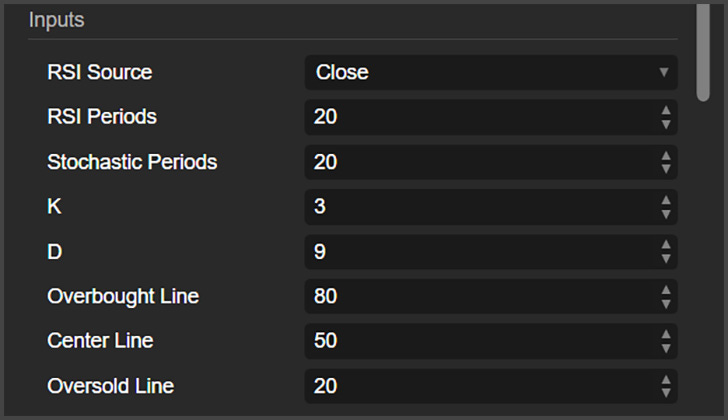
RSI Source: Choose here the source for the RSI. This is only relevant if running the indicator in RSI mode.
RSI Periods: Here, you set the periods of the RSI. This is only relevant if running the indicator in RSI mode.
Stochastic Periods: This is the number of periods for the StochRSI. This is only necessary for the StochRSI mode.
K: This line represents the current value of the StochRSI. It indicates the position of the current RSI relative to its range over a specified period. Increasing this value will make the K line smoother.
D: This is the moving average of the %K line, typically calculated over a 3-period span. It serves as a signal line, smoothing out short-term fluctuations in the %K line to help identify potential trend reversals.
Overbought Line: This is the percentage level of the RSI or StochRSI at which the indicator will report an overbought state. Recommended values are 80 for StochRSI and 70 for RSI. Recommended value is 50.
Center Line: This is the middle level between the overbought and oversold levels.
Oversold Line: This is the percentage level of the RSI or StochRSI at which the indicator will report an oversold state. Recommended values are 20 for StochRSI and 30 for RSI.
Alerts
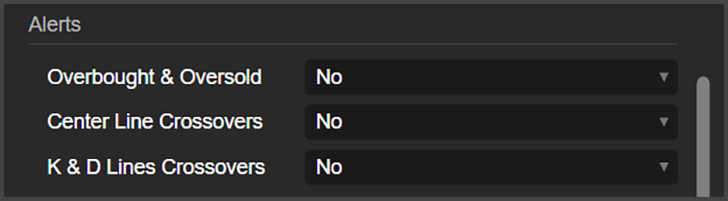
Overbought & Oversold: Here, you can enable overbought and oversold alerts. You can choose to enable only when entering these levels, only on exiting (from overbought or oversold to a normal level), and both, when entering and exiting.
Center Line Crossovers: This enables alerts for when the RSI or StochRSI crosses the line between the overbought and oversold.
K & D Lines Crossovers: This will alert you when the K line crosses over the D line. This only works with StochRSI mode.
Alert Types
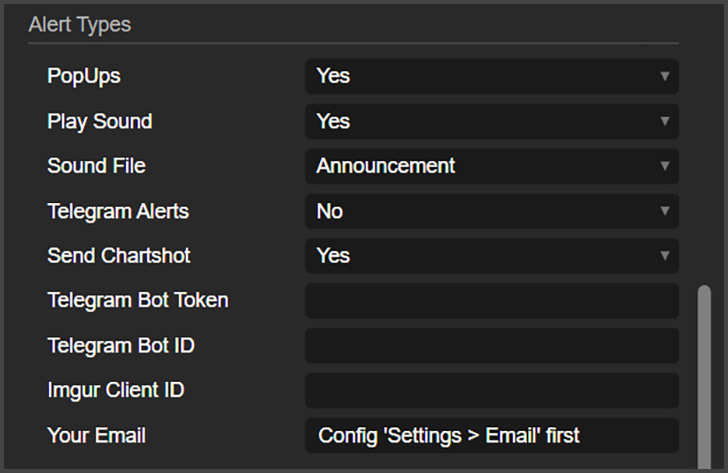
Popups: Here, you can enable cTrader popup alerts.
Play Sound: This enables sound alerts.
Sound File: This is the sound used for sound alerts.
Telegram Alerts: Here, you can enable Telegram alerts.
Send Chartshot: A chartshot is a screenshot of the chart, and here is where you can enable that. The chartshots are sent via Telegram.
Telegram Bot Token and Bot ID: Place here your Telegram credentials.
Imgur Client ID: This indicator uses Imgur to send chartshots. Place here your Imgur Client ID.
Your Email: Write here the email you want to send alerts to.
Lines
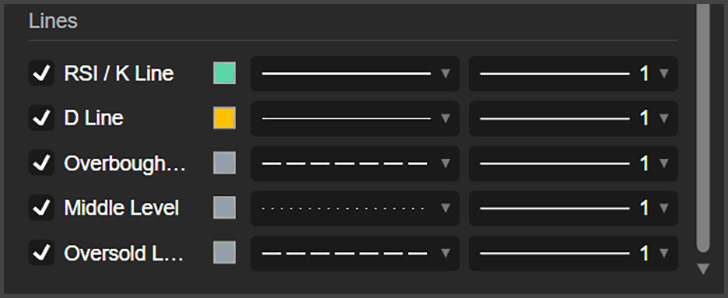
Here is where you can customize the appearance of all the outputs of this indicator.